◆ Fucini Coverage Studio Community
The same extension, minus the trial and team-plan machinery — permanently free from the moment you install it, no time limit. Optionally unlock every feature (MC/DC included) at no cost by sharing detailed usage telemetry, or upgrade to Pro any time.
SHA-256
◆ Fucini Coverage Studio Pro
Full-featured from install: MC/DC, unlimited Full HTML Reports, and the side-by-side Annotated Source view. Starts with a 14-day free trial — after that it settles into the same free Community feature set rather than locking you out, or you can activate a paid plan.
SHA-256
◆ Fucini Coverage Studio for Visual Studio
The same reader, in Visual Studio 2022 and 2026 — Community, Professional and Enterprise. It does not use Visual Studio's own code coverage, which in 2022 is Enterprise-only: on Community and Professional it is the only coverage the IDE will show. Included with every paid plan; on a machine where Coverage Studio for VS Code is activated it needs no key of its own.
Download for Visual Studio (.vsix)
SHA-256
◆ Fucini Coverage Studio on the command line
The same reader, free, for the places an editor is not: a gate in a pipeline, a badge in the README, the HTML report on a build server, a baseline compare on a pull request, an MCP server for an AI agent. Windows, Linux, WSL and macOS, Node 20 or newer. Every command documents itself.
npm install -g fucini-coverageDownload the package (.tgz) fucini-coverage on npm
SHA-256
How to install a .vsix
VS Code doesn't install a downloaded .vsix file automatically — open it from inside the editor:
- Open the Extensions view (
Ctrl+Shift+X/Cmd+Shift+X). - Click the
···menu at the top of the Extensions view → Install from VSIX… - Pick the file you downloaded, then reload the window if prompted.
In Visual Studio, open the downloaded .vsix: the VSIX Installer asks which Visual Studio to install into — any of 2022 and 2026, Community, Professional or Enterprise — and installs once the IDE is closed. The extension loads when a solution or a folder opens, and Tools → Coverage Studio → Getting Started opens by itself the first time.
To check a download, compare its SHA-256 with the one shown above: run Get-FileHash .\coverage-studio-vscode-<version>.vsix -Algorithm SHA256 in PowerShell, or shasum -a 256 coverage-studio-vscode-<version>.vsix on macOS and Linux; the Visual Studio build is coverage-studio-vs-<version>.vsix. The hashes of the current builds — all three — are listed in SHA256SUMS.txt. Older builds are removed from the feed when a new one ships.
Pre-release builds
New work reaches this site before it reaches the Marketplace, and you can ask to be offered it: open the Coverage view, expand the licence panel and press Test pre-release builds…. From then on the extension checks a separate pre-release feed here as well as the ordinary one, and offers whichever is newer. Pre-releases are tested, but they are the builds we are least sure of — you would be volunteering to find what we missed. Joining tells us that this installation is on the channel, so we know how many people are testing and can say what changed; leaving puts you back on the ordinary path at the next stable release, and the whole thing is also the setting fuciniCoverage.update.preRelease.
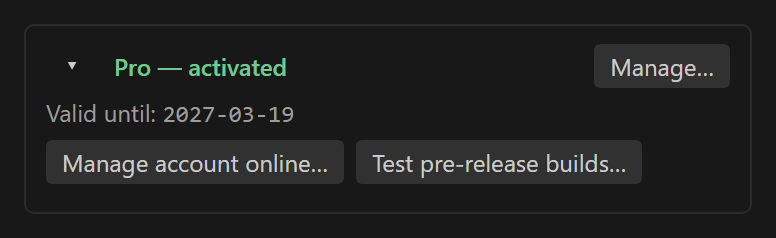 Screenshot pending — add assets/img/licence-prerelease.png (see SCREENSHOTS.md).
There is not always a pre-release to be had, and joining when there is none costs nothing: the extension finds an empty feed, says nothing about it, and goes on offering stable releases until one is published.
Already have one of the VS Code builds installed and want the other instead? Just install the other one the same way, then disable or uninstall the first — both read the same fuciniCoverage.* settings, including your activation key if you have one, so nothing gets lost switching.
Not sure which fits? See the full breakdown on the pricing page.